
Cadence OrCAD PCB Designer used in our Printed Circuit Board Design (DFTG 2405) and Electrical/Electronic Drafting (DFTG 1458) classes is industry’s best mix of cutting-edge capabilities and tremendous user value. The OrCAD PCB Designer suite has all the technology needed to meet today’s toughest design challenges. The suite offers an integrated front and back design environment from OrCAD Capture schematic entry, PCB Editing with OrCAD PCB Editor, and enable manufacturing outputs.
Instructions
Please click each header below in sequence to read and follow the steps required to install your software.
REGISTER
In order to utilize Cadence OrCAD X software at home, you need to sign up and create a Cadence account and request a free academic license on their website. The following guide below should help you navigate to request your free license and get started with downloading the software.
Sign Up
- Visit the OrCAD X Academic License request page (click here).
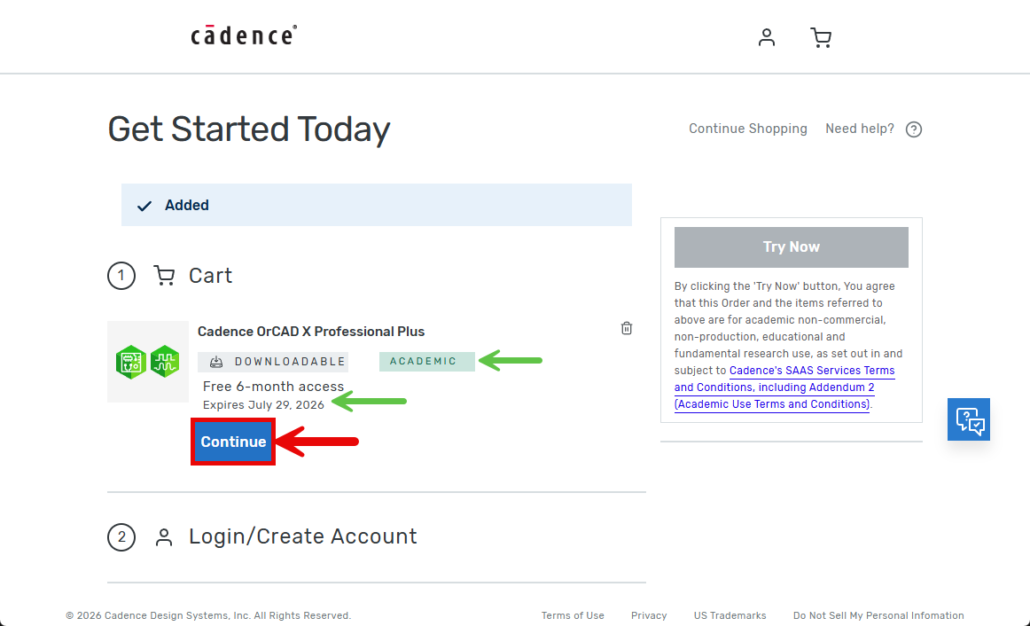
- Click on the blue button titled Free Academic License. (You will be redirected to a checkout screen with the name of the software populated in the cart).
- Verify that your the cart includes Cadence OrCAD X Professional Plus and that you see Downloadable and Academic labels next to the product names.
- Select the blue Continue button.
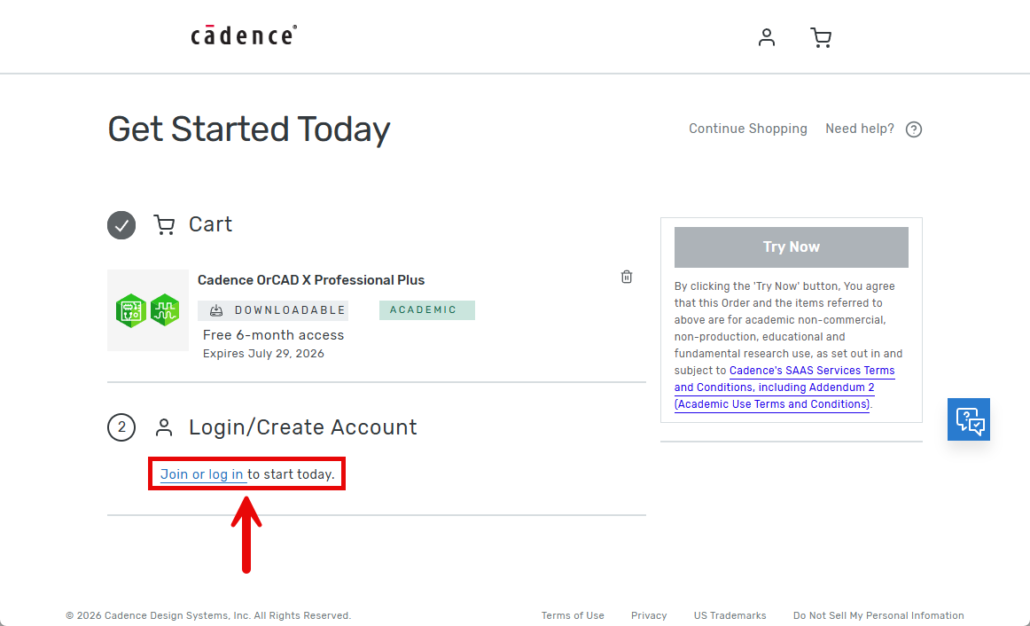
- Click on Join or log in.
- Follow the instructions under Create CadenceID below.

Create CadenceID
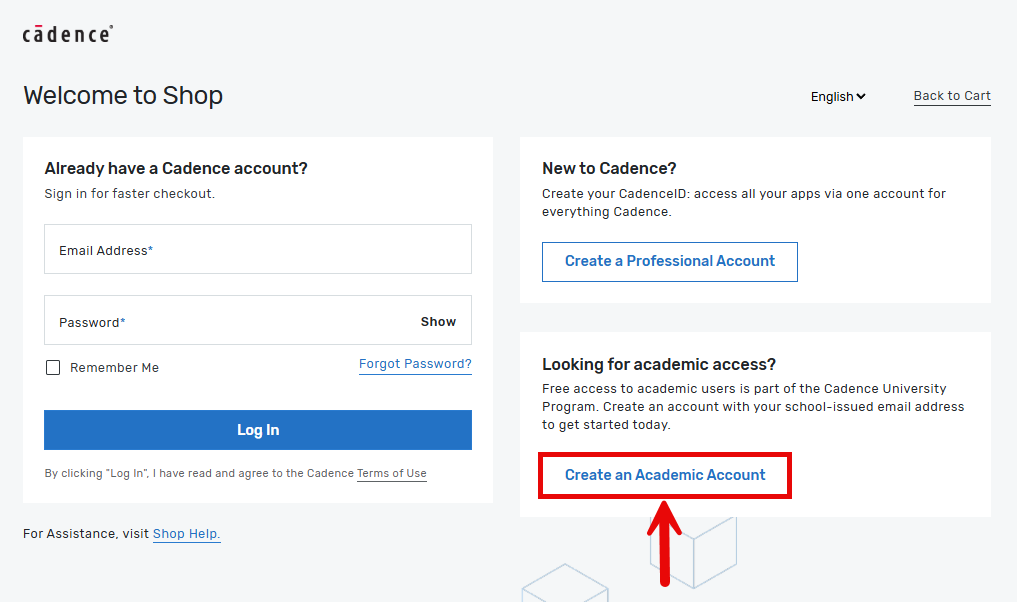
- Click the Create an Academic Account button.
- Enter in your ACC Student email address (ending in g.austincc.edu), along with your First Name and Last Name.
- Click Continue.

Verify & Set Password
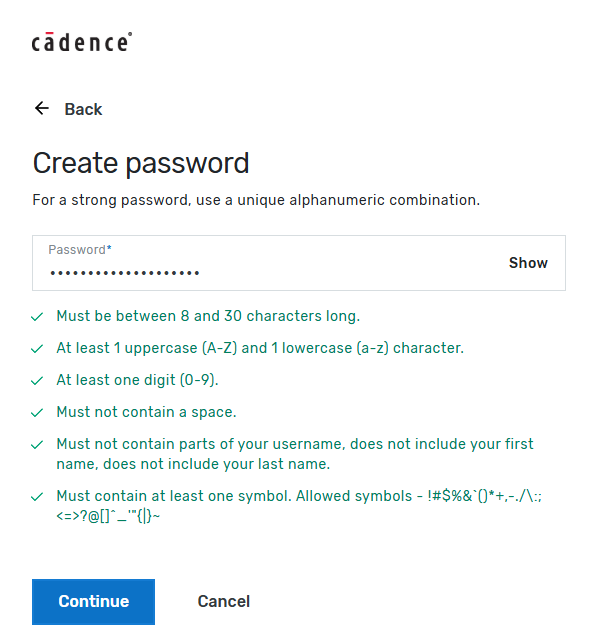
- Enter the verification code sent to your ACC student email address.
- You will then be prompted to Create a password. (Be sure your password meets the minimum requirements).
- Click Continue.
- Once your account has been successfully created, click on Login.


Now that you have submitted your request, please continue with the instructions below to download and install Cadence OrCAD.
DOWNLOAD & INSTALL
Now that you have created your CadenceID, you are ready to download Cadence OrCAD, follow the instructions below:
Download
- Navigate to the Cadence Apps Portal page (click here).
- Sign in using your CadenceID and password.
- Verify that you have OrCAD X Professional listed under Your Products.
- Click on the blue Download button.
- You should see OrCADXInstall.exe start downloading in your web browser.
- Once the download is complete, click the .exe file to begin the installation process.


Install
- Double-click on the .exe file you downloaded earlier. (Select Yes if you are prompted to allow app to make changes). You should then see the OrCAD X splash window open on your screen.
- Enter in your CadenceID and password then check the box next to Remember credentials.
- Click the blue Sign in button.
- Read and Accept the License Agreement.
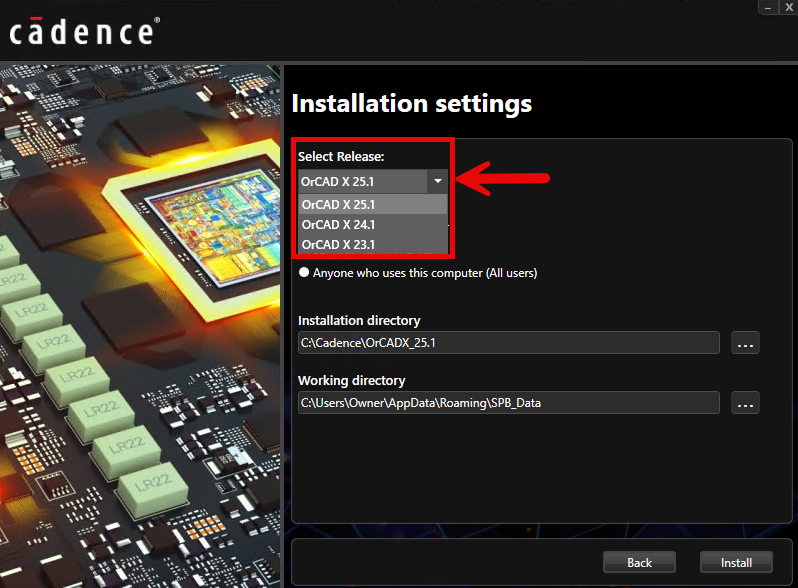
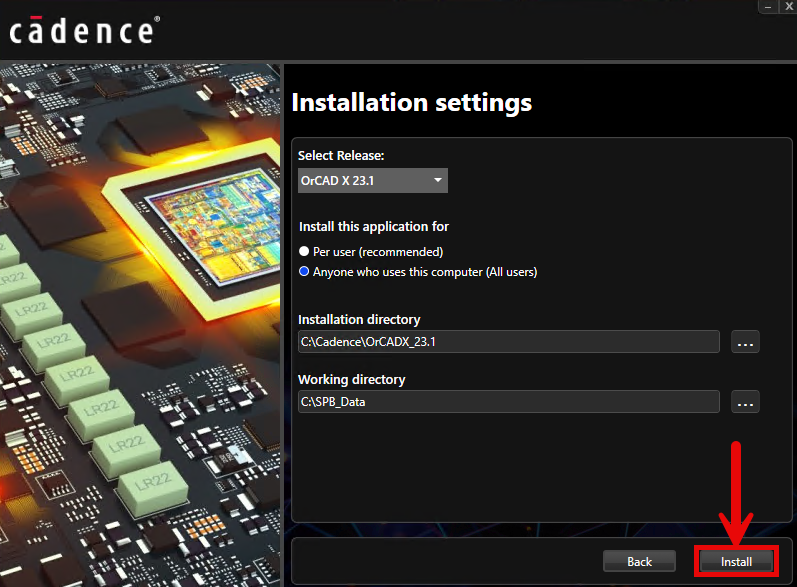
- Under Installation settings, click on the drop-down arrow and select your appropriate OrCAD X version. (23.1 is what is used in our labs as of the Spring 2026 semester).
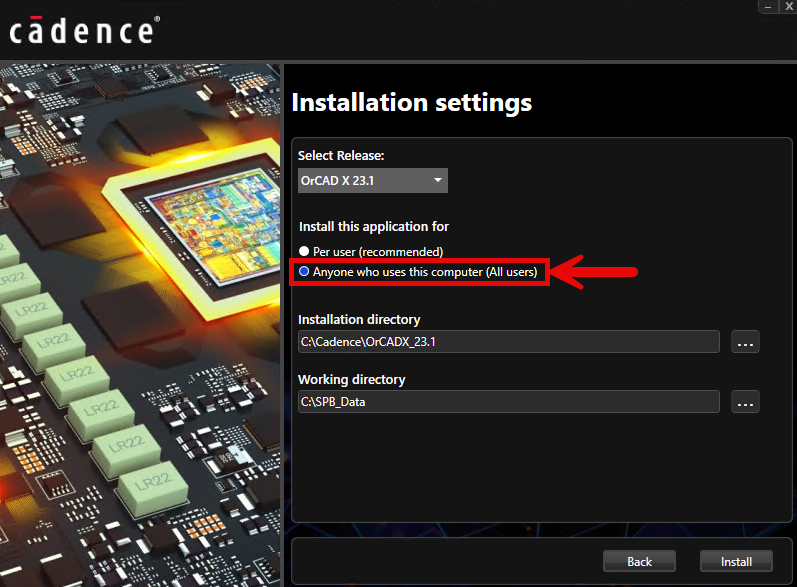
- Under Install this application for, select Anyone who uses this computer (All users).
- Click Install. (You will see a progress bar indicating the status of your installation).
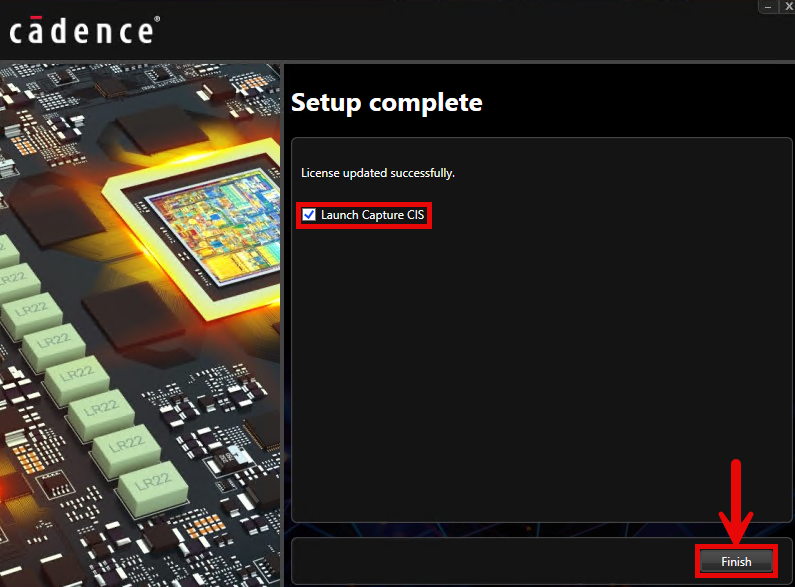
- Once your installation is complete, check the box Launch Capture CIS, then click Finish.


Launch
- Open the Start Menu, click the All button, scroll and look for any folders starting with Cadence.
- Click on your desired program to launch.
- Sign-in using your CadenceID and Password.

You are now ready to use the software! If you have any questions or concerns, please don’t hesitate to reach out to us.