

Bluebeam Revu is an industry standard software application that allows users to markup, takeoff, organize, and collaborate with PDF files. More than simply a PDF viewer, or annotation tool, Bluebeam Revu is efficiency and collaboration software for anyone who works with technical files. This applies to a wide range of industries, including architecture, engineering, construction, manufacturing, and energy related companies. The built-in tools and functions provide users in these industries a sleek and powerful tool to get work done quickly. Because of this, many AEC professionals have switched to Bluebeam Revu as their default PDF software.
Students may be required to collaborate with classmates, submit assignments, and review red lines using Bluebeam Revu.
Instructions
Please click each header below in sequence to read and follow the steps required to install your software.
FREE ACADEMIC SUBSCRIPTION REQUEST
- Browse to the Bluebeam Academic Program page and click the Request a Free Subscription button.

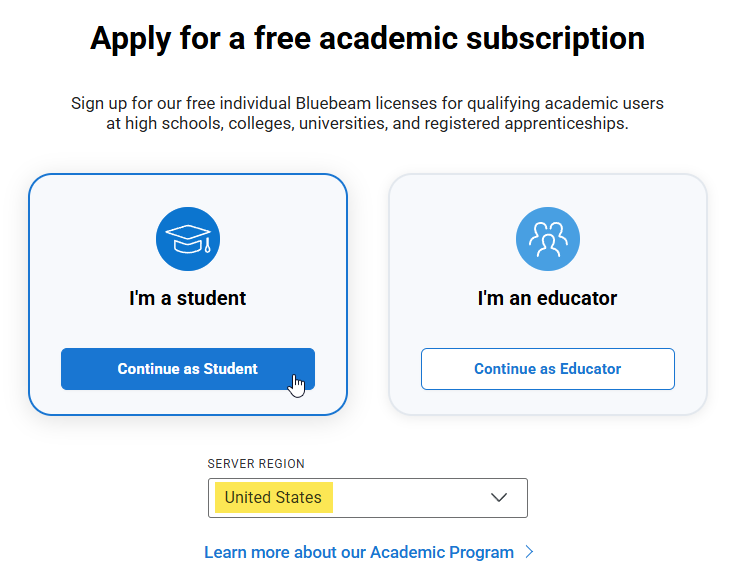
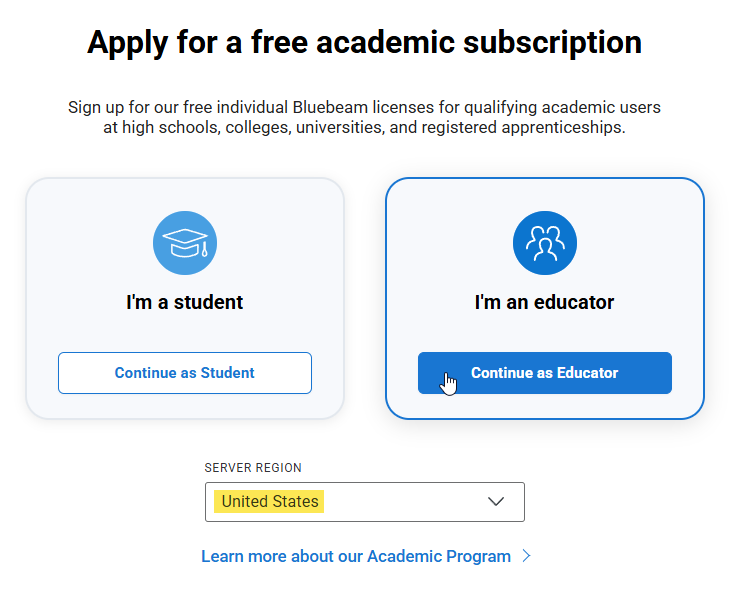
- If you are a student, click Continue as Student. If you are an educator, click Continue as Educator.
- NOTE: Ensure that the Server Region is set to United States.
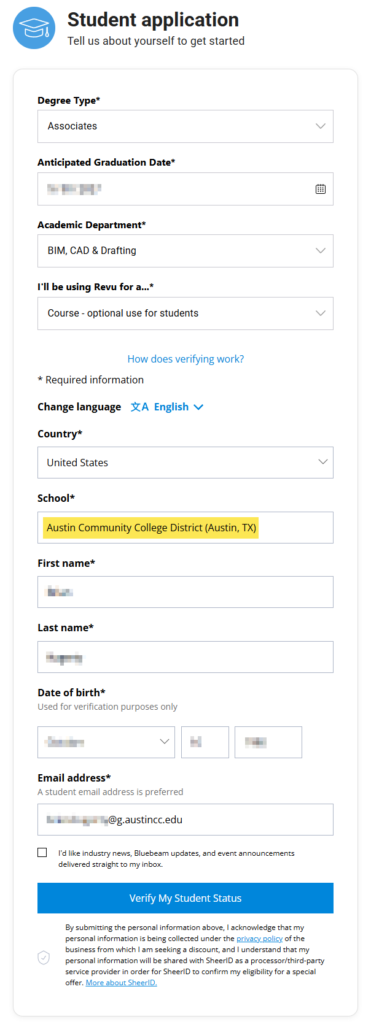
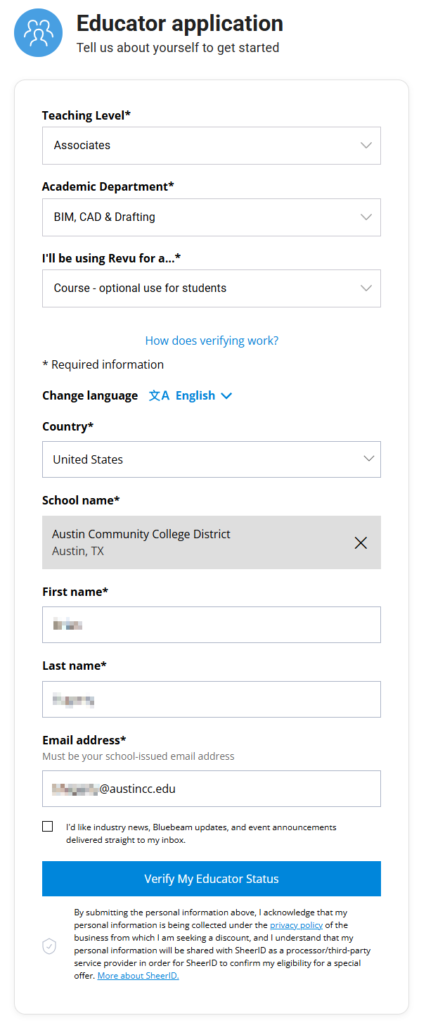
- On the application page, fill out the following fields accordingly:
- Degree Type/Teaching Level: Associates
- Anticipated Graduation Date (students only)
- Academic Department: BIM, CAD & Drafting
- “I’ll be using Revu for a…”: Course – option use for students
- Country: United States
- School: Austin Community College District (Austin, TX)
- First and Last name
- Date of birth (students only)
- ACC Email address (ending in “@g.austincc.edu”)
- Then click on Verify My Student/Educator Status
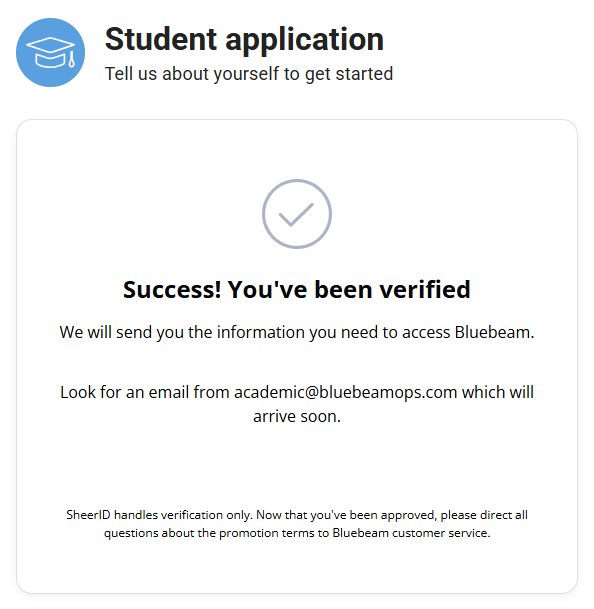
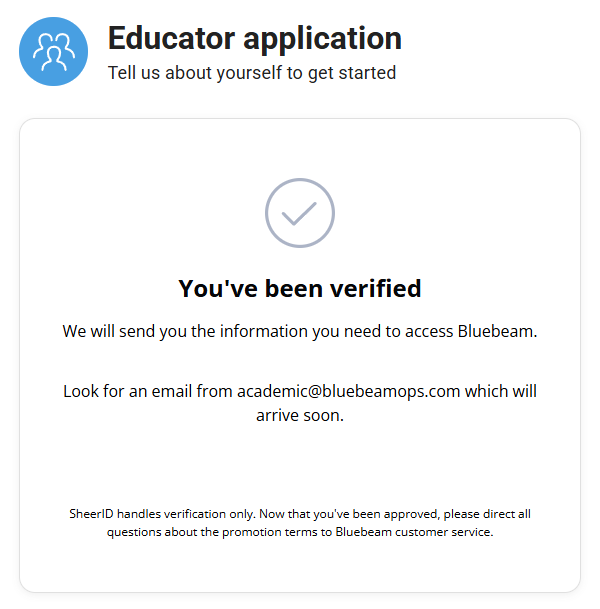
- If your status as a student/educator is verified, you will receive a message stating “You’ve been verified.”
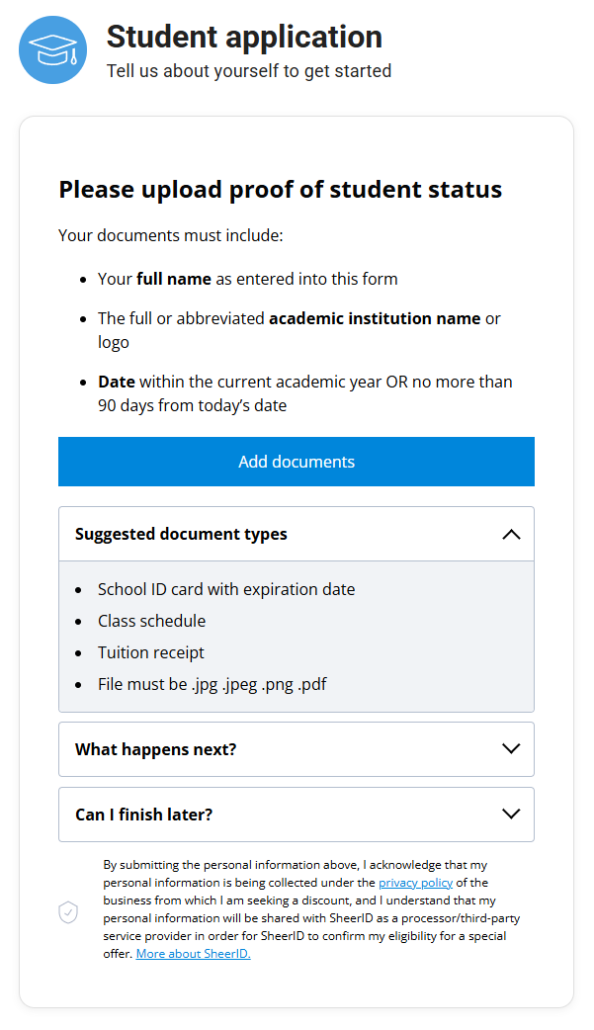
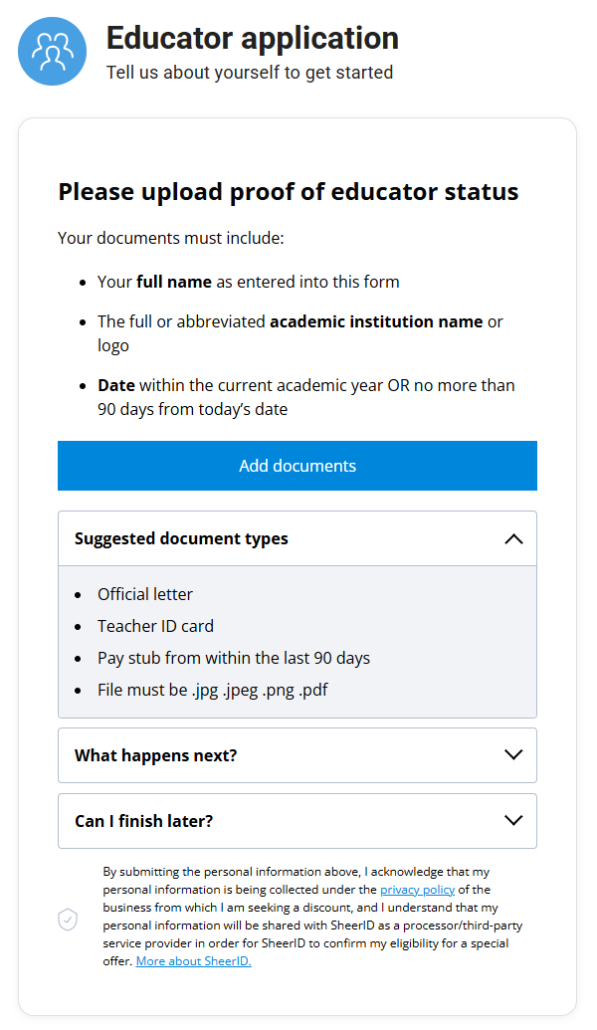
- NOTE: If Bluebeam is unable to verify your status, you will need to provide additional documentation (see the additional images below).
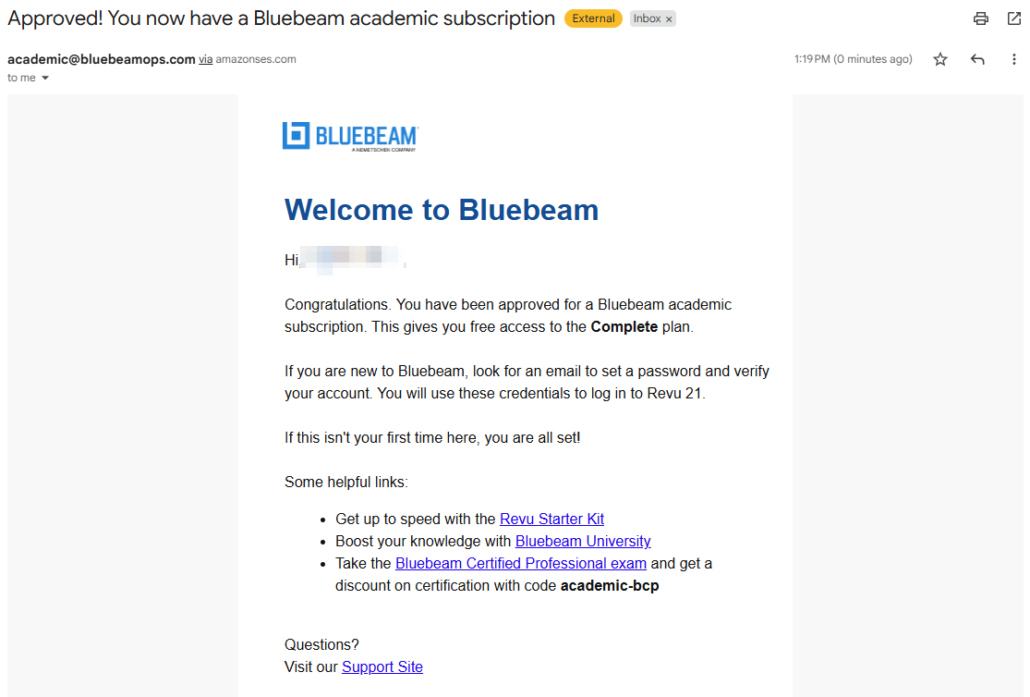
- Once you have received the message stating you have been verified, look in your email for a message from academic@bluebeamops.com for the next step.
NOTE: If Bluebeam is unable to verify your status, you will need to provide additional documentation (see the additional to the right).
CREATE BLUEBEAM ACCOUNT
Now that you have requested your free academic Bluebeam Revu subscription and verified that you are a student/educator, you will need to create a Bluebeam account (if you have not already done so).
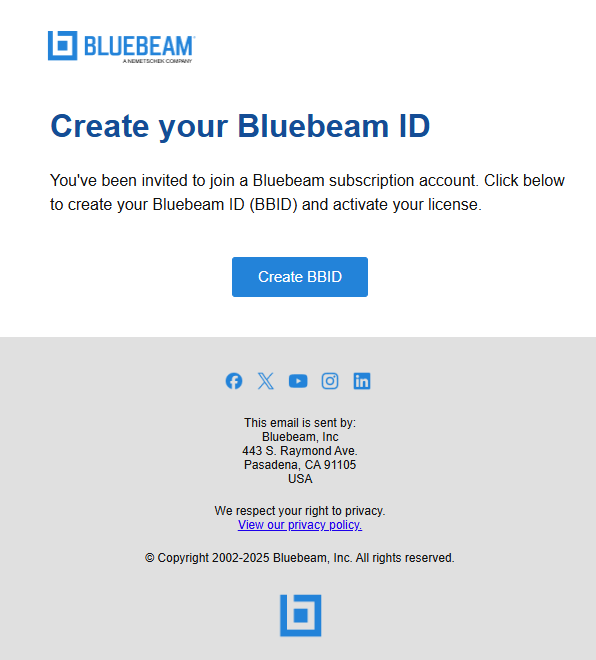
You should have received two emails from Bluebeam. One stating you have been approved for a Bluebeam academic subscription, and another with a button to create your Bluebeam ID.
- Click on Create BBID
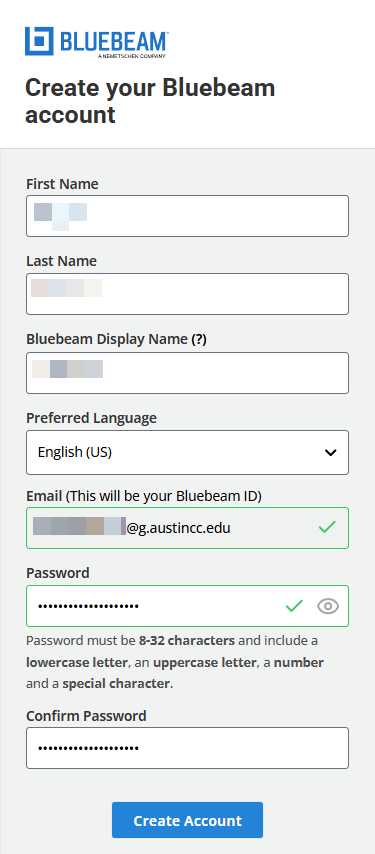
- On the Create your Bluebeam Account page, enter in the following information, then click Create Account
- First and Last Name
- Bluebeam Display Name
- Preferred Language
- ACC Email address
- Password
- Confirm Password
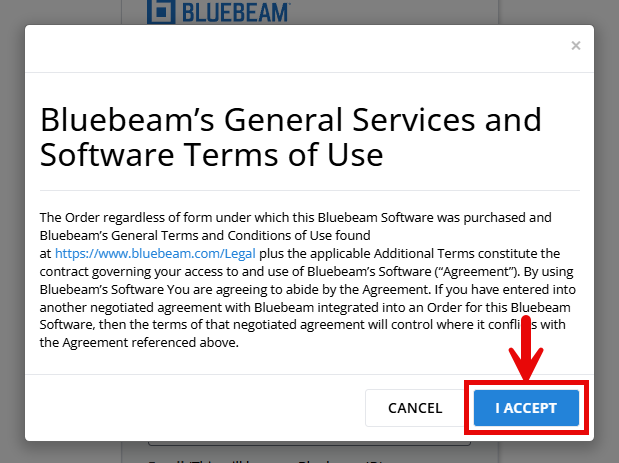
- Agree to Bluebeam’s General Services and Software Terms of Use.
- Then check for an email from Bluebeam to confirm your email and Bluebeam ID.
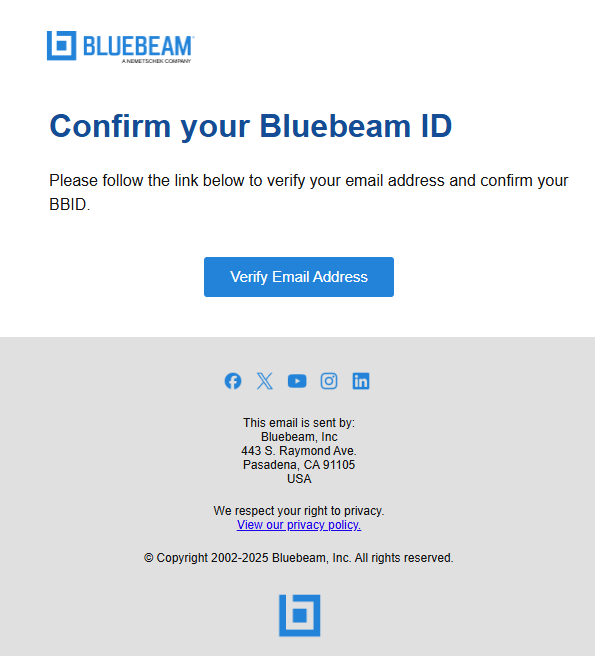
Once your email and Bluebeam ID has been confirmed, proceed to the Download and Install section below.
DOWNLOAD AND INSTALL BLUEBEAM REVU
To download and install Bluebeam Revu on your personal device, follow the instructions below:
- Browse to the Bluebeam Download Center and click on Download for Desktop
- Once complete, launch the installer from your browser’s download tray or from your default download location
- If you receive an Open File – Security Warning, click on the Run button to continue
- Click on the Install button from the ensuing window
- When complete, launch Bluebeam Revu
- Click the I Accept button to agree to the Terms and Conditions
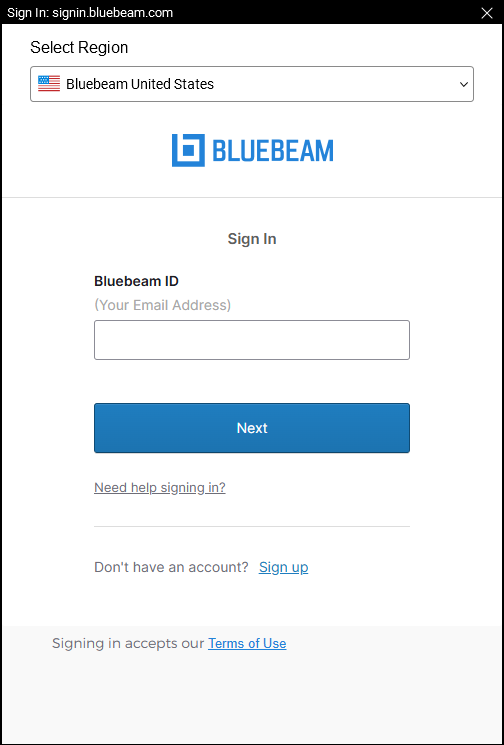
- When prompted to, sign in using your Bluebeam account (ACC email address).
- NOTE: Ensure the “Select Region” dropdown has Bluebeam United States selected.
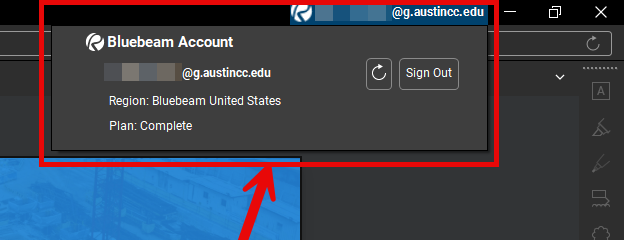
- If successfully signed in, you will see your account information in the upper right-hand corner of Revu.
Congratulations! You have successfully installed and signed in to Bluebeam Revu! You can now proceed to use it.